Overview
The Storage Mover plugin lets you move files that were uploaded to one storage provider to a new location. For example, you can move person profile images stored in your database to a cloud storage solution like Amazon S3, Azure Blob Storage or Cloudinary.
Note
The destination storage provider must be installed and configured in Rock before you move files. Some providers are built into Rock, and others require a separate plugin.
Before You Begin
Storage Mover uses the storage provider configured on the File Type as the destination. Before moving files, make sure the provider is set up, active and able to connect from your Rock server. Refer to your cloud provider's documentation for creating the storage account and access credentials.
Securing Cloud Storage
Your storage account doesn't need to allow public access. Rock retrieves files with its own credentials and serves them to your users, so you can disable anonymous access and limit network access to your Rock server(s).
Note
For File Types stored in a private storage account, set Requires View Security to Yes. When it's set to No, Rock links directly to the file in cloud storage, and those links will fail if public access is blocked.
If some files need to be publicly reachable by URL (for example, website images), store those File Types in a separate container or storage account that allows public read access.
If Rock is hosted with the same cloud provider and in the same region as your storage, IP-based firewall rules may not apply. Use your provider's virtual network or private endpoint options instead.
Note
Rock connects using the storage account name and access key, so key-based access must stay enabled on the storage account.
Configuration
Note
Back up your database and file system before using this plugin, in case things don't go as planned.
First, configure the File Type you want to move so it uses the new storage provider. Storage Mover uses the File Type's current settings as the destination, so future files use the same settings. Review the File Type's Requires View Security setting at this point too (see Securing Cloud Storage).
Keep in mind that a File Type's storage provider can change at any time. New files use the new settings. Existing files are still retrieved with the settings from when they were uploaded. Storage Mover simply moves those existing files to the new location.
Once your File Type's settings are updated, open the Storage Mover page that was added to Rock's admin area when the plugin was installed.
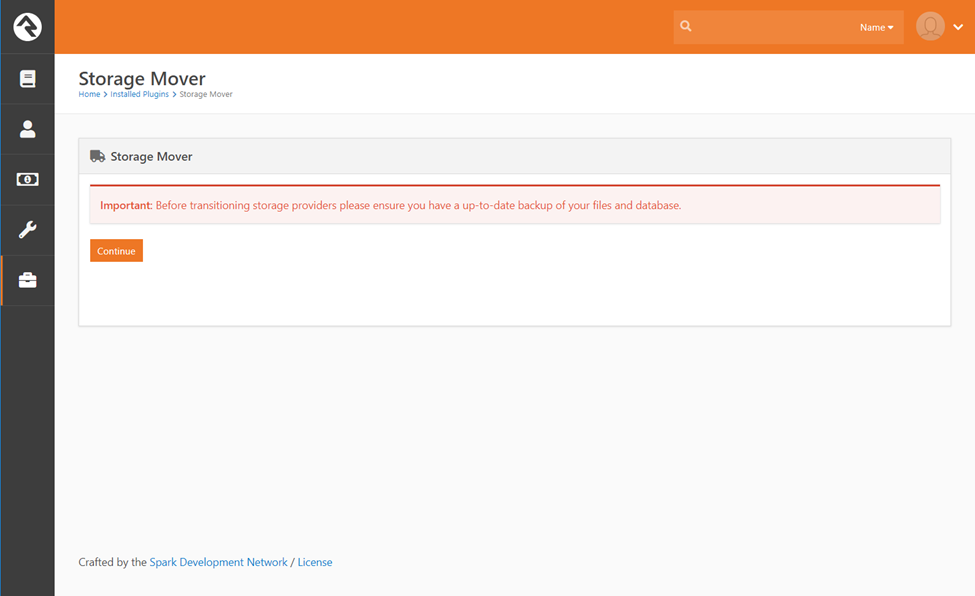
The first screen reminds you to back up. Once you've backed up your database and web server file system, click Continue.
The next screen lets you pick the File Type you want to move. It shows how many files are in each previously configured storage provider, along with their combined file size. Select the source storage provider (where the files are now). The destination is the File Type's currently configured storage provider.
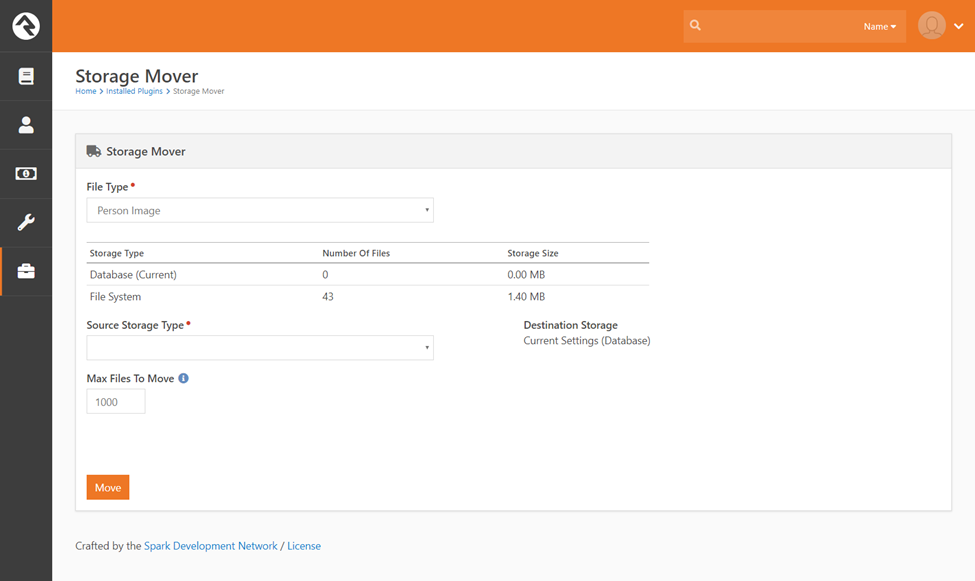
You can also limit how many files to move at a time. This helps in two ways:
- Testing: Enter 1 to move a single file. You'll get a link to the file at its new location so you can confirm it works.
- Large moves: Moving files to cloud storage can take a while, depending on file sizes and your connection speed. A good rule of thumb is about 1 second per file. If you have several thousand files, move them in batches.
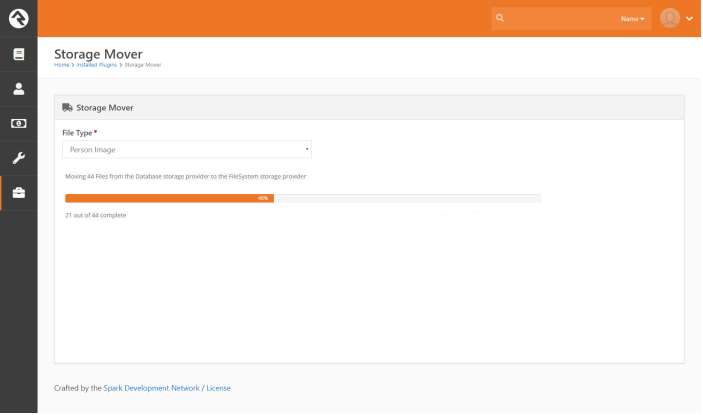
Once you've set the move options, click Move.
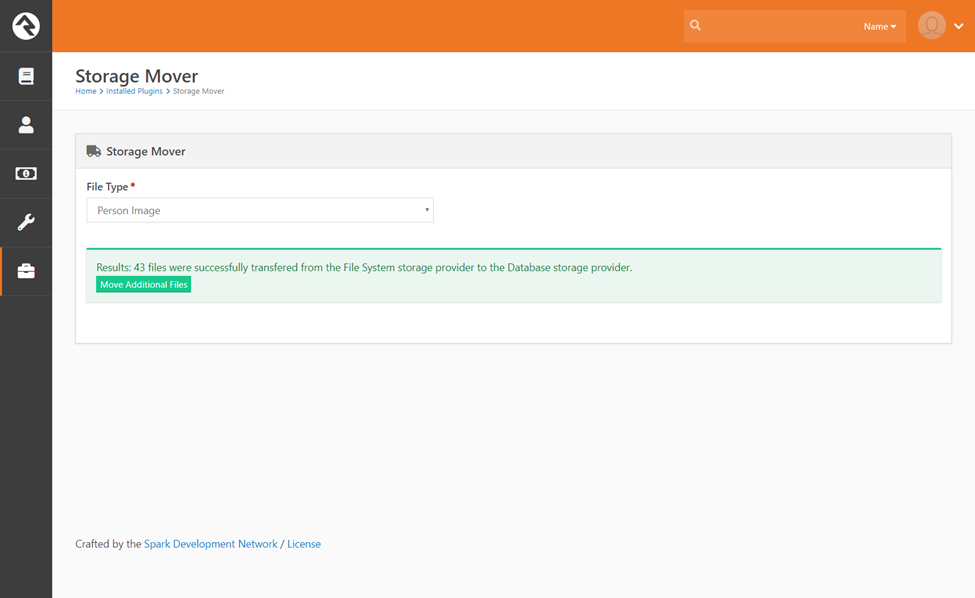
When all the files have been moved, you'll see a results screen. Refresh the page to start another move.