Your logo is more than just a graphic... it’s your organization’s signature. In a crowded inbox, that small icon is sometimes the only thing standing between a recipient opening your message or ignoring it.
Setting this up is easier than it looks. You simply need to decide which "path" fits your budget and your audience.
To build immediate trust and stand out in a crowded list, displaying your brand’s logo is essential. It tells your people, "Yes, this is really from us."
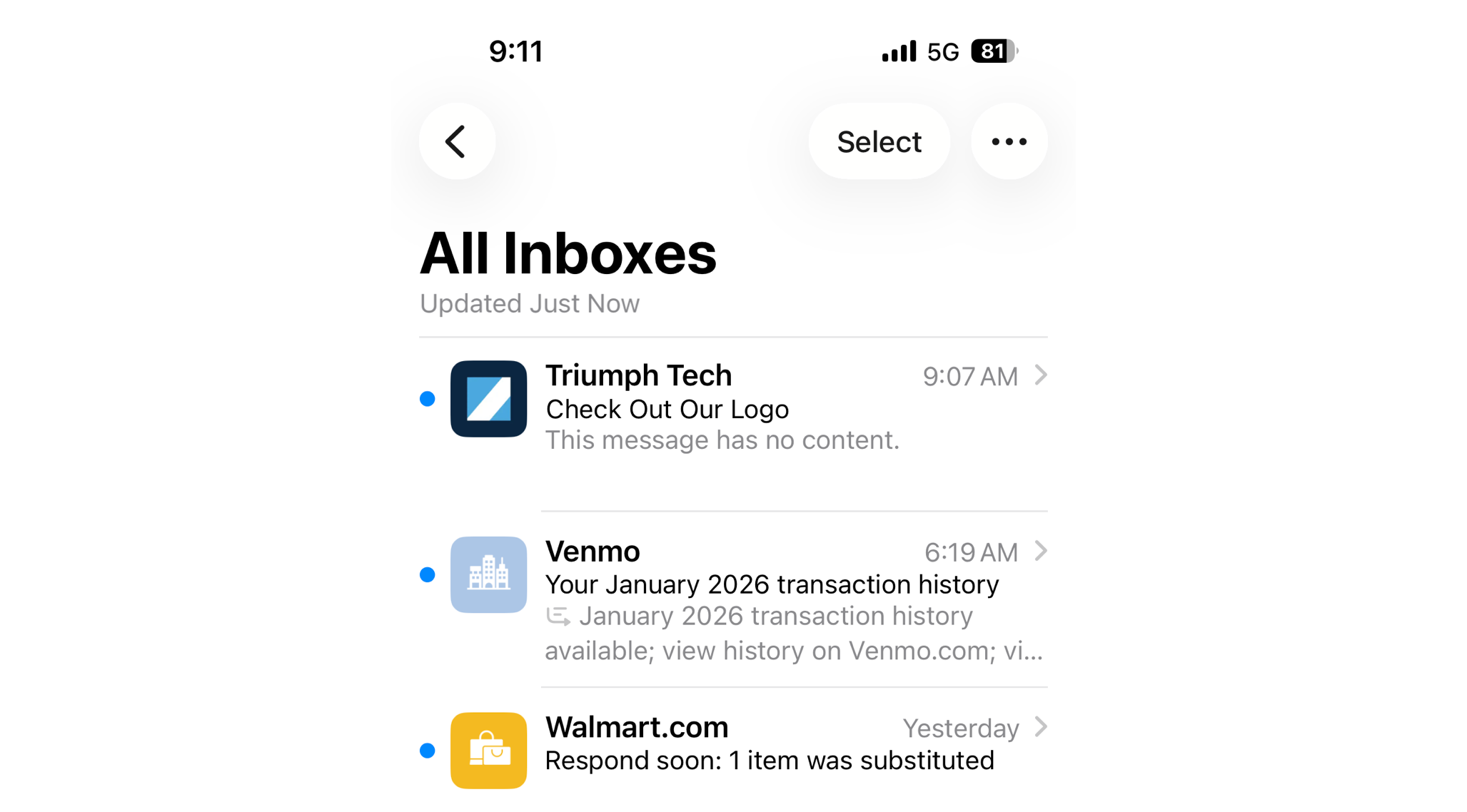
First impressions happen in milliseconds. By displaying your official logo, you aren't just looking professional; you’re building immediate trust. Organizations that implement logo branding see:
- 21% increase in open rates
- 18% improvement in brand recall
- 34% increase in purchase likelihood
(Practical E-Commerce Stats)
Note
It is important to understand one key rule: The logo your recipient sees depends entirely on which app they use to read their mail. Even if you set everything up perfectly on your end, a member reading your email in Gmail might see something different than a member reading in Apple Mail or Outlook. To ensure you're covered everywhere, we recommend a multi-phase approach.
Free & Simple Logo Branding
Apple Email Logos
Apple Business Connect is a free platform. It lets your logo show up next to emails in the Apple Mail app (on iCloud, iOS, and macOS). If a big portion of your audience uses Apple, this is a quick win.
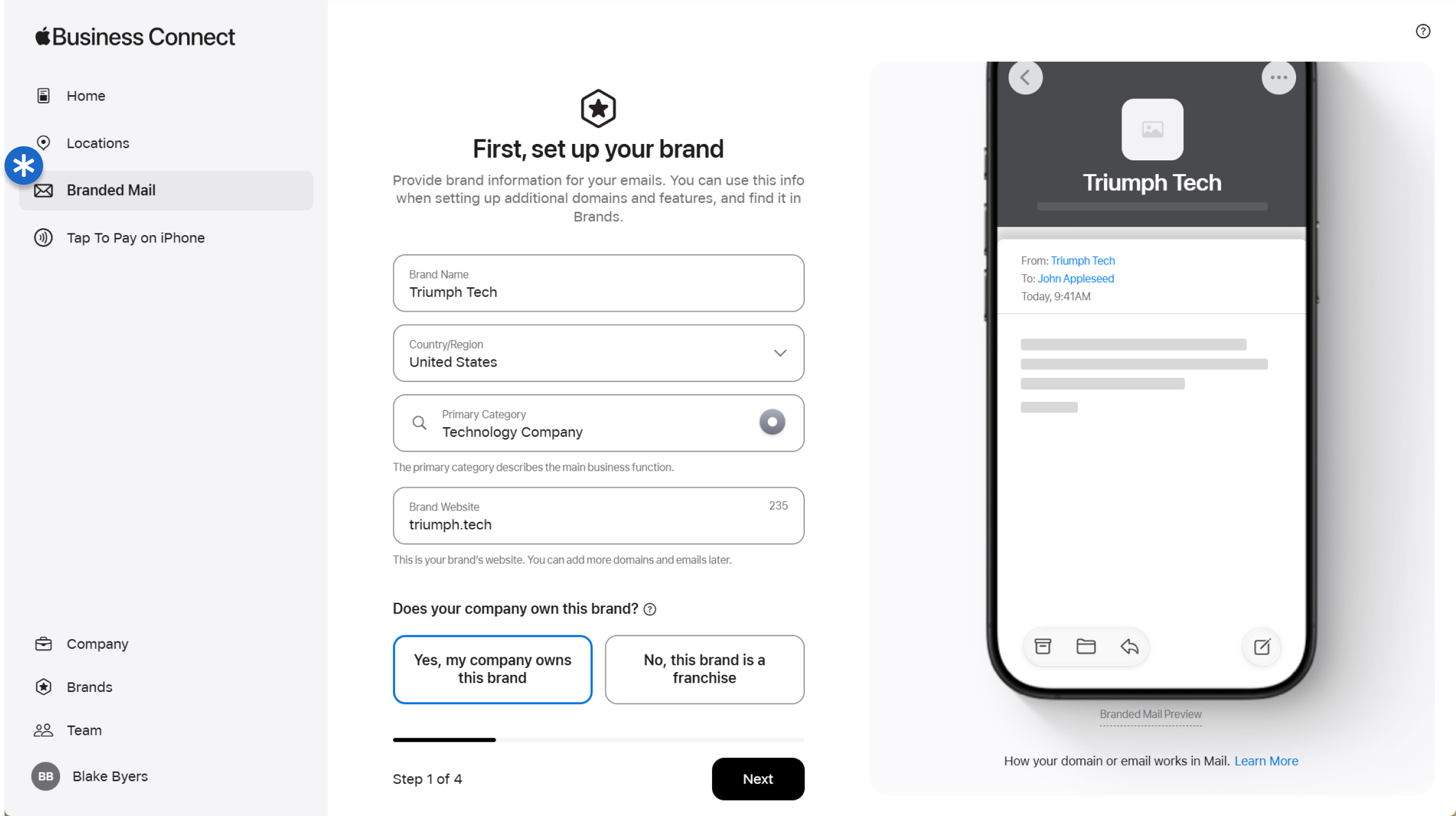
- Confirm DMARC Is Enforced - Ensure your domain has DMARC set to
p=quarantine or p=reject. - Register Your Organization - Go to the Apple Business Connect portal. Sign up and register your business using your Apple Account.
- Verify Domain Ownership - Follow the prompts in the platform to prove you own your email sending domain.
- Upload Your Logo - Here is some good news. You don’t need a complex SVG here. Apple accepts standard formats like PNG, JPEG, or HEIF.
- Turn on Branded Mail - Link your verified domain with your uploaded logo to activate the feature.
- Manage Your Presence - You can also use this portal to control how your brand looks in Apple Maps, Wallet, and Siri. It’s a one-stop shop.
- Wait - It usually takes 3–5 business days for verification to happen, then you will be good to go.
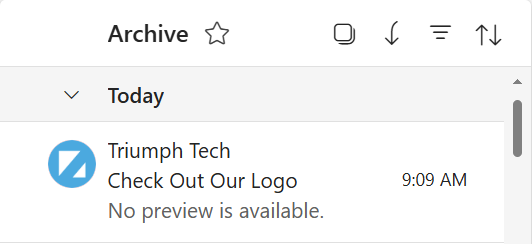
Outlook Email Logos
Microsoft handles branding differently than other providers. They do not currently support BIMI; instead, they rely on internal profile data and contact records.
To get your logo to show up for Outlook and Microsoft 365 users, you must update your Microsoft Profile Photo at the organizational level. (You will need a Microsoft Admin from your team to do this)
Note
The Reality for External Emails:When emailing people outside of your organization who use Outlook, your logo will typically not appear automatically. It generally only displays if the recipient has explicitly added your email address to their personal Outlook Contacts with an associated image. For a more universal "inbox logo" experience, we recommend focusing on the Apple Business Connect and BIMI strategies outlined in the other sections of this guide.
Bonus Strategy: BIMI
BIMI is the official standard for displaying logos in the inbox. It connects your brand image directly to your domain security. It is the most powerful method but also the most technical.
| Feature | Self-Asserted (Free) | CMC (Paid ~$1,100/yr) | VMC (Paid ~$1,700/yr) |
|---|
| Best For | Small biz, testing, Apple/Yahoo focus | Brands wanting Gmail logo without trademark | Enterprise, Trademark holders |
| Yahoo / Fastmail | ✅ Logo Shows | ✅ Logo Shows | ✅ Logo Shows |
| Gmail | ❌ No Logo | ✅ Logo Shows | ✅ Logo + Blue check |
| Apple Mail* | ❌ No Logo | ✅ Logo Shows | ✅ Logo Shows |
| Logo Trademark Required? | No | No | Yes |
Note
*VMC setup is outside of the scope of this guide. For more on VMC, see this guide.
Common Mark Certificates (CMC) are what we suggest for organizations that want to get their logo to the most email clients possible without having to worry about trademarks. Here is what pricing looks like.
CMC Pricing:
| Vendor | Est. Price (1 Year) | Best For | Prerequisites |
|---|
| DigiCert | ~$1,236 | Enterprise Support | DMARC Enforcement, Video Call Validation |
| GlobalSign | ~$1,035 | Volume / API Access | DMARC Enforcement, Notarized Identity |
| SSL.com | ~$1,150 | Speed of Issuance | DMARC Enforcement, 12+ Months Logo Use |
Note: Prices vary based on multi-year commitments and reseller discounts.
Now that you've picked your path, let's set up the BIMI foundations.
Step 1: Set up BIMI Foundations
This is the big one. BIMI relies entirely on strong email authentication. Without this foundation, nothing else works. The following setup is needed whether you implement Self-Asserted, CMC or VMC branding.
- Verify Sending Sources - Make sure your Sender Policy Framework (SPF) and DomainKeys Identified Mail (DKIM) are set up correctly. They need to cover all your sending sources.
- Verify DMARC Policy - Set your DMARC policy to strict enforcement.
- Policy must be set to
p=quarantine or p=reject. - Note:
p=none is not enough for BIMI.
- Match Domains - Ensure the domain used in your DMARC record matches your sending domain exactly.
Once your security is tight, it’s time to get your visuals ready. But... you must choose which path you want to take first.
Step 2: Prepare Your Assets
Once you have chosen your path, create the files you need.
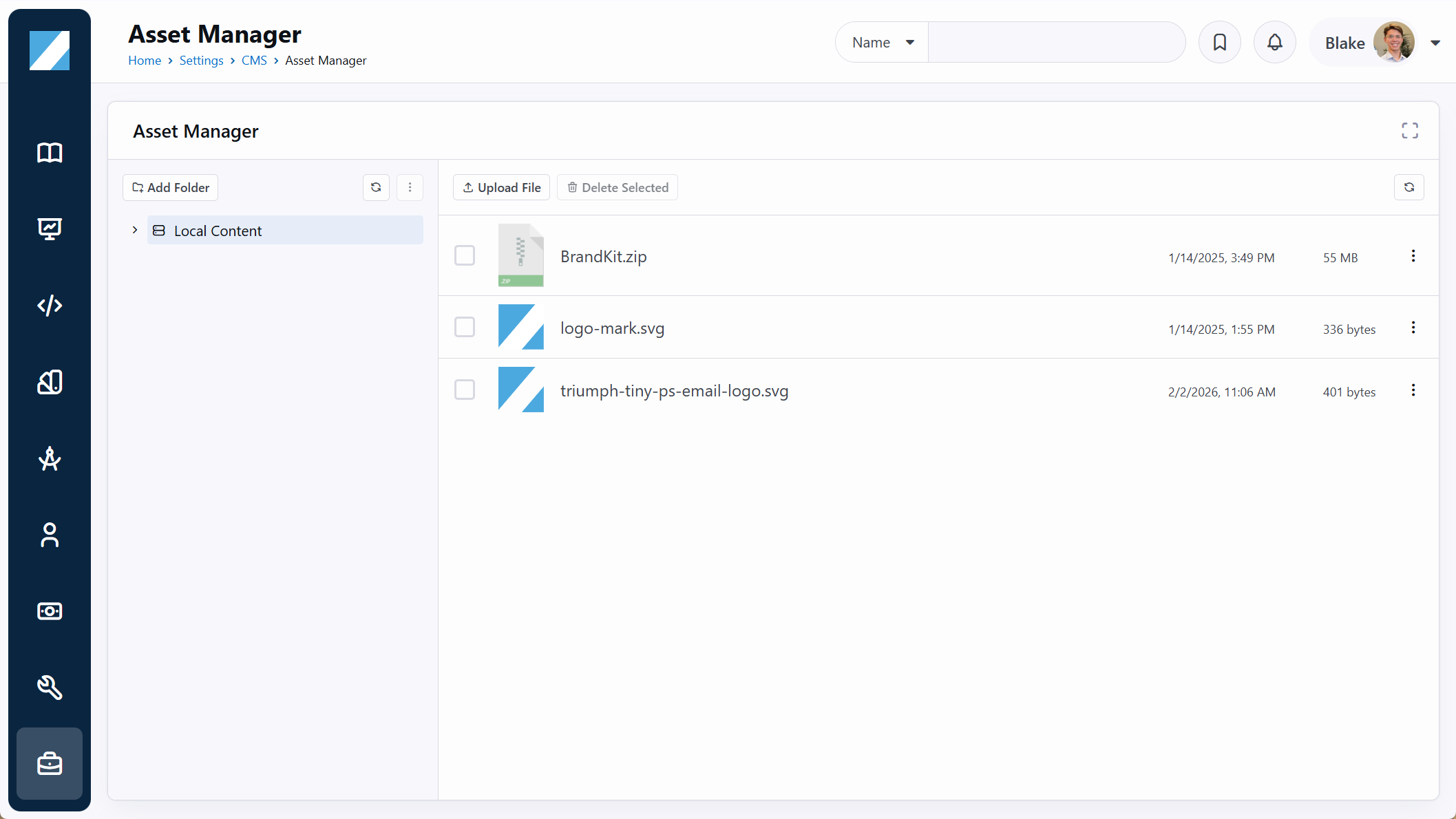
- Logo Prep (Required for BIMI)
- Create Your SVG - Design your logo in the SVG Tiny PS format. This is strict. It’s the only file type BIMI accepts. (Or convert it to Tiny PS here)
- Host the Logo - Upload that SVG file to a secure web server. It must be publicly accessible via HTTPS.
- Copy the Link - It should look like:
https://staff.triumph.tech/Content/ASM_Thumbnails/1/Content/triumph-tiny-ps-email-logo.svg
- The Certificate (Required for CMC or VMC)
- Purchase a certificate: Pick an authorized authority (DigiCert, Entrust, etc.).
- Validation: They will verify your identity (video call) and logo usage.
- Output: You will receive a
.PEM file. - Hosting: Upload the
.PEM file to your public web server (HTTPS). - Copy URL:
https://yourdomain.com/certs/brand-certificate.pem
Step 3: Publish the DNS Record
This is the switch that turns BIMI on. Add the following TXT record to your DNS provider.
Host/Name: default._bimi
Value (Select from below):
1. If you are going the FREE route (No Certificate) - Use this if you did not buy a certificate.
v=BIMI1; l=https://yourdomain.com/images/logo-tiny-ps.svg; a=;
2. If you purchased a CMC (Paid Certificate) - Use this if you have a .PEM file.
v=BIMI1; l=https://yourdomain.com/images/logo-tiny-ps.svg; a=https://yourdomain.com/certs/brand-certificate.pem;
TTL: 1 Hour (3600 seconds)
Final Record...
| Host/Name | Value | TTL |
|---|
| default._bimi | #1 or #2 above | 1 Hour (3600 seconds) |
Tip
It may take 24-48 hours for the logo to appear.
Note
Gmail Display For providers like Gmail, seeing the logo isn't guaranteed immediately. It depends on your sending reputation and volume. Keep your lists clean and your content engaging, and the logo should appear.
That’s it! You have navigated DNS settings, verified your identity, and claimed your space in the inbox.